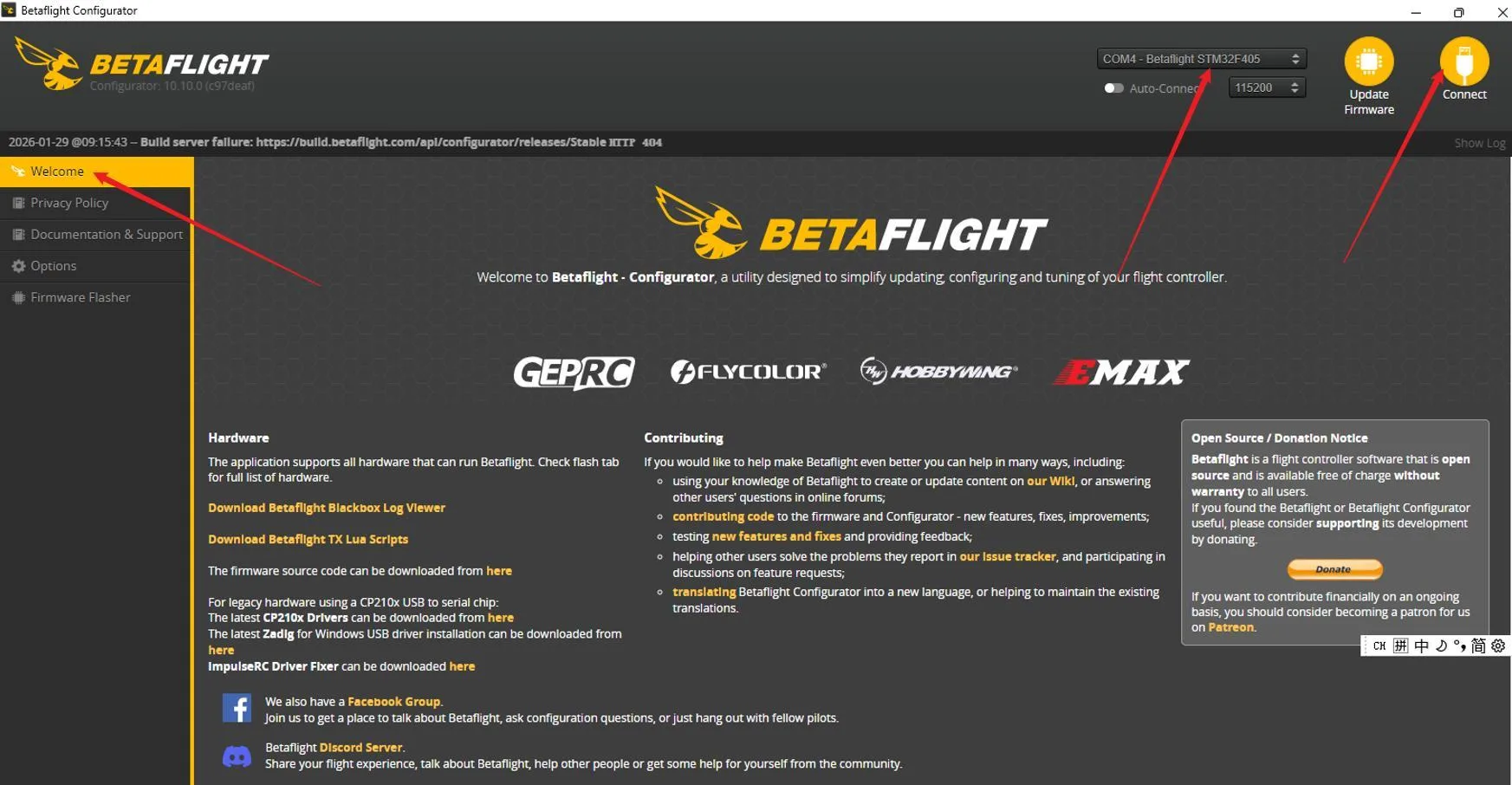
APM (Mission Planner)
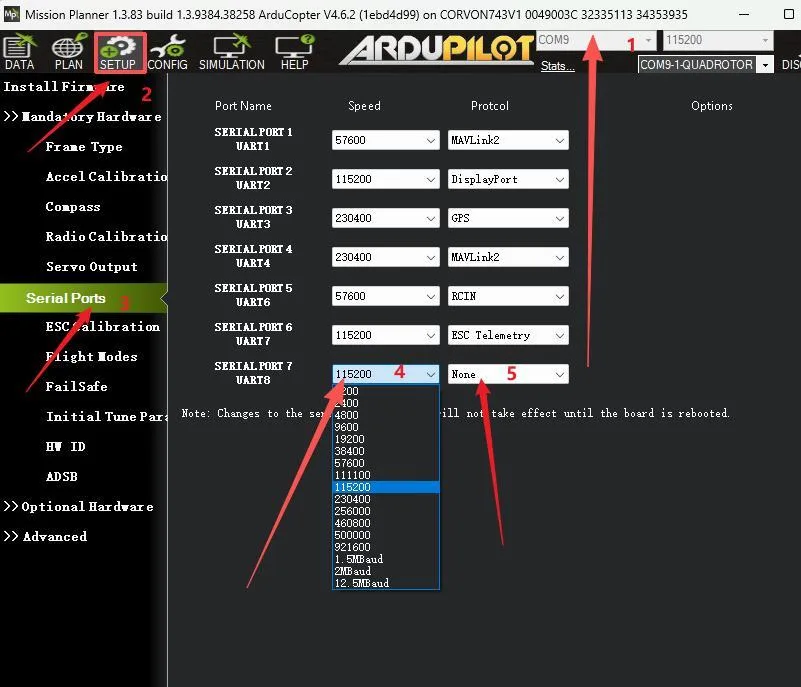
Modify Flight Controller Port for Bluetooth Support: Open the APM (Mission Planner ground station and connect the computer to the flight controller using a Type A-to-C data cable.
• Select the corresponding port for connection.
• Open “SETUP”.
• Choose “Serial Ports” for serial port configuration.
• If your Bluetooth module is on UART8 of the flight controller, select the corresponding “Serial Ports” option, such as “Serial Port 7 (UART8)”.
• Change the “Speed (Baud Rate)” to 115200 and the “Protocol” to “MAVLink2”.
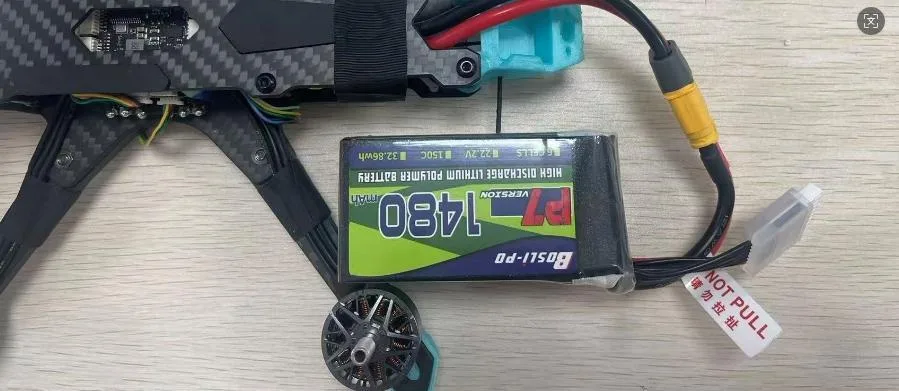
Power on the aircraft with a battery.
Disconnect the data cable between the computer and the flight controller at this point.
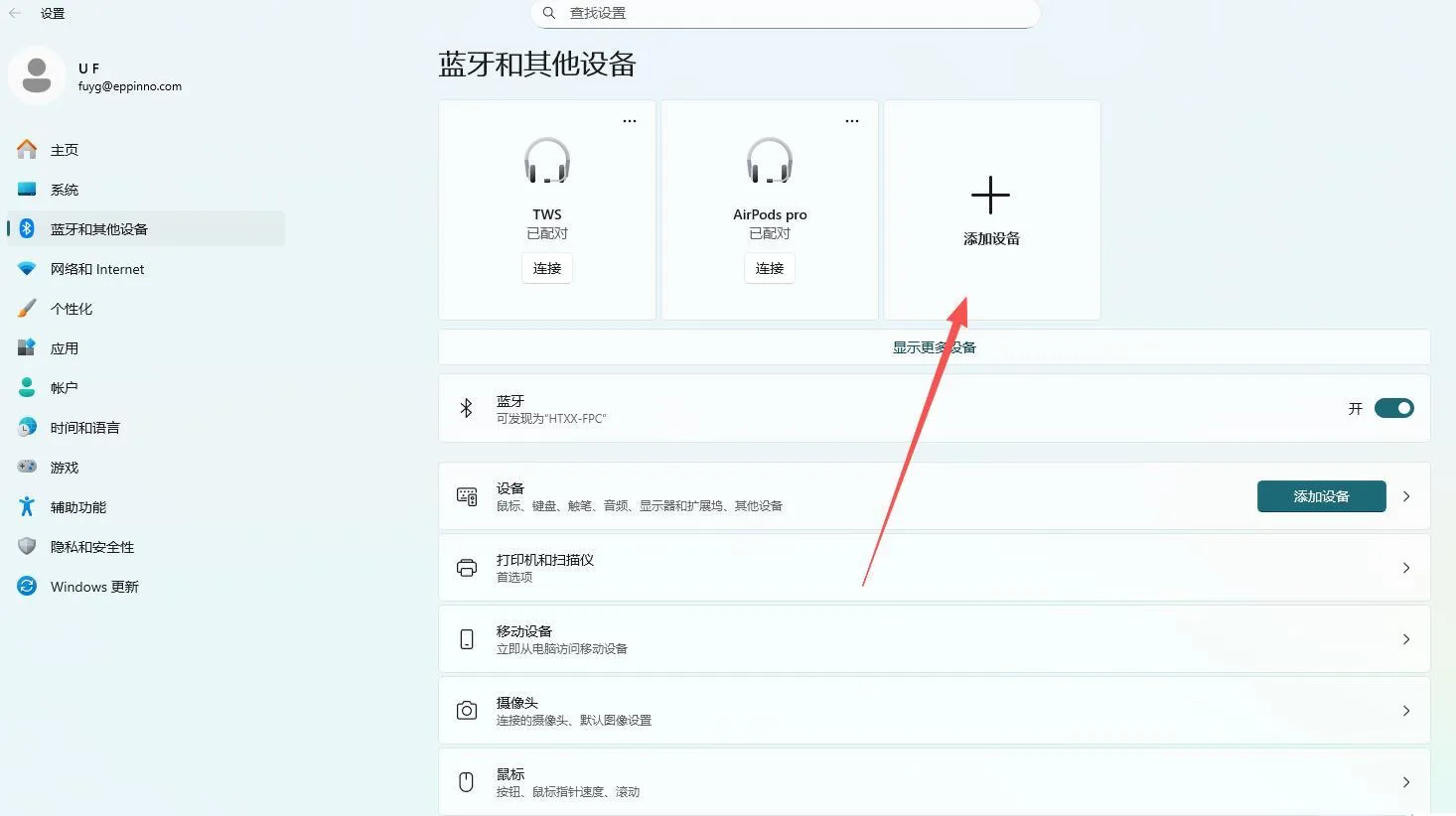
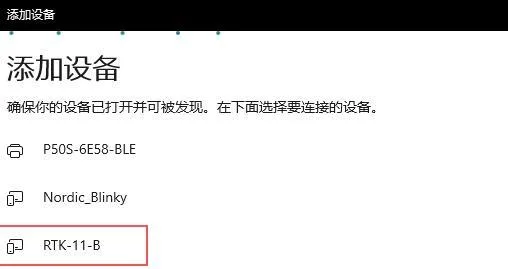
On the computer (Windows), open Bluetooth settings, select “Add a device” choose “Show all devices”, and find “CORVON BLE”.
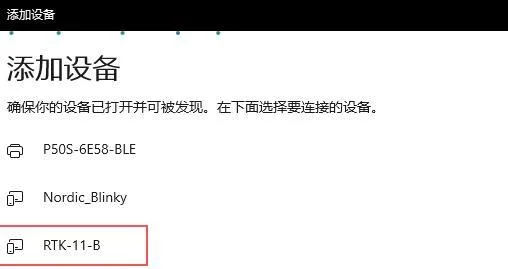
Open the APM (Mission Planner) ground station, select the corresponding serial port, and click “Connect”. The connection should now be successful.
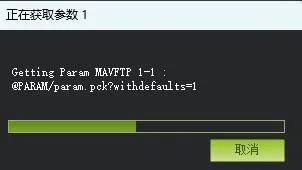
PX4 (QGroundControl)
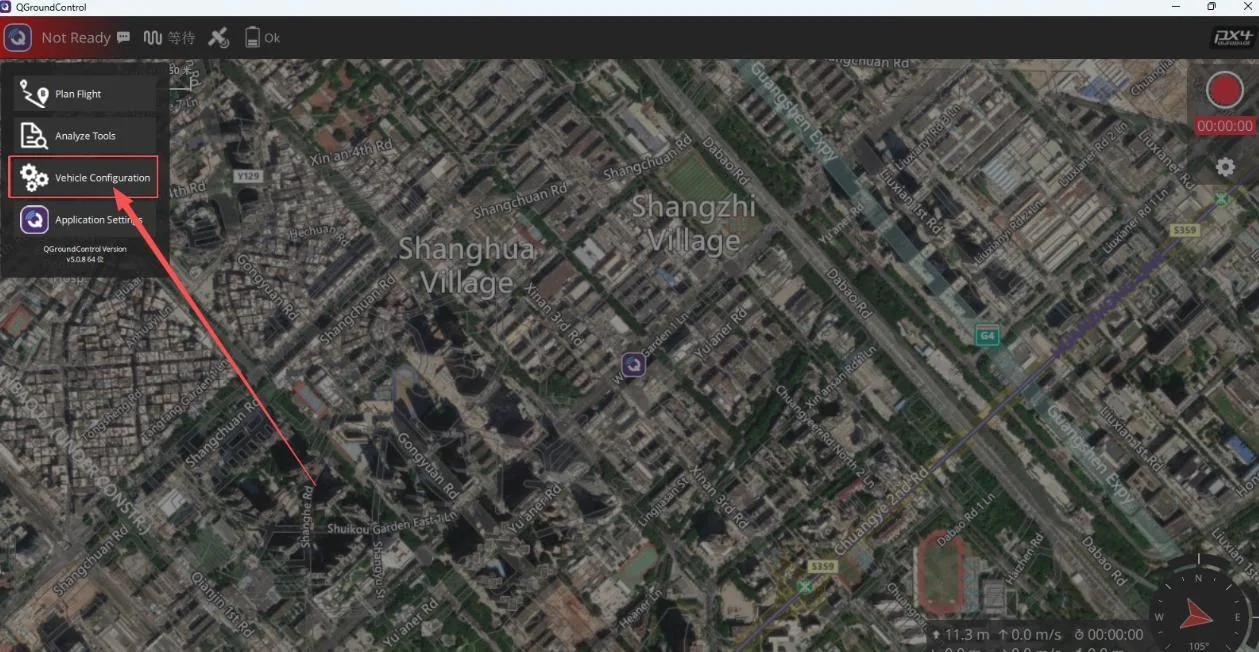
Open the PX4 (QGroundControl) ground station and connect the computer to the flight controller using a Type A-to-C data cable (to modify the flight controller port for Bluetooth support).
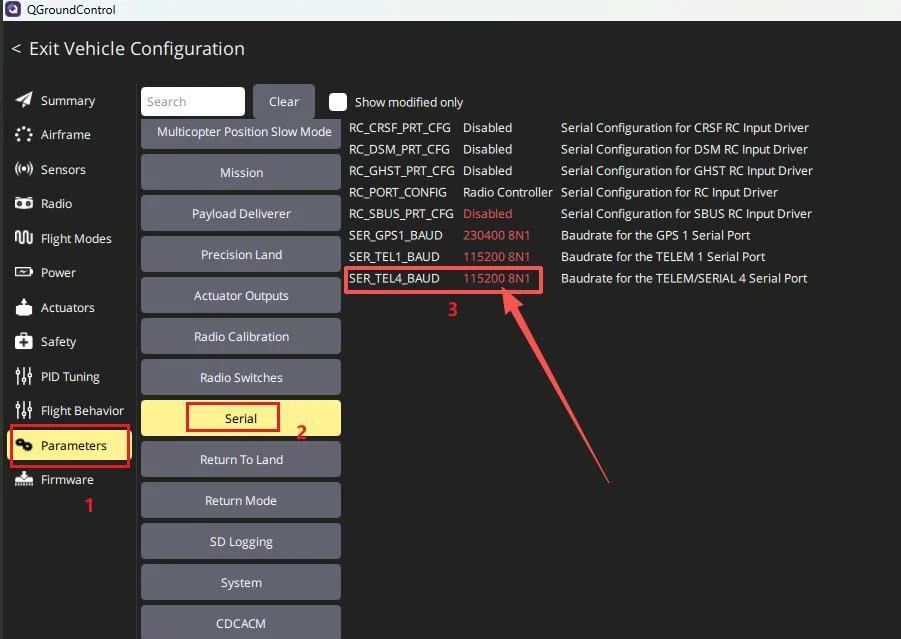
• Select “Vehicle Configuration” > “Parameters”.
• Find settings related to “serial” (for serial port configuration).
• For example, if the Bluetooth module is connected to UART8, modify the parameter SER_TEL4_BAUD to 115200 8N1.
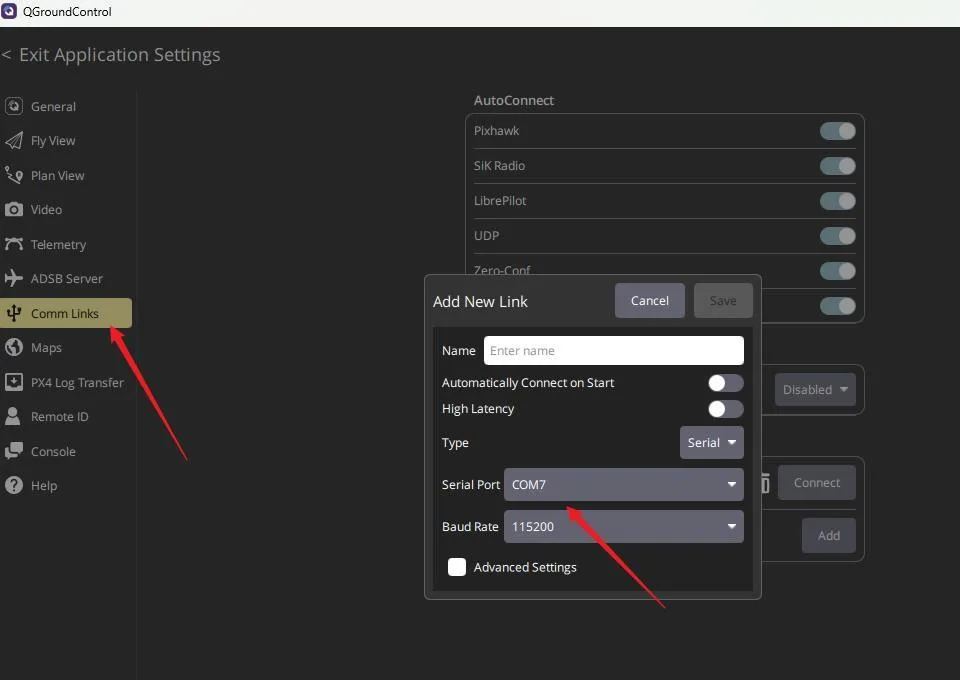
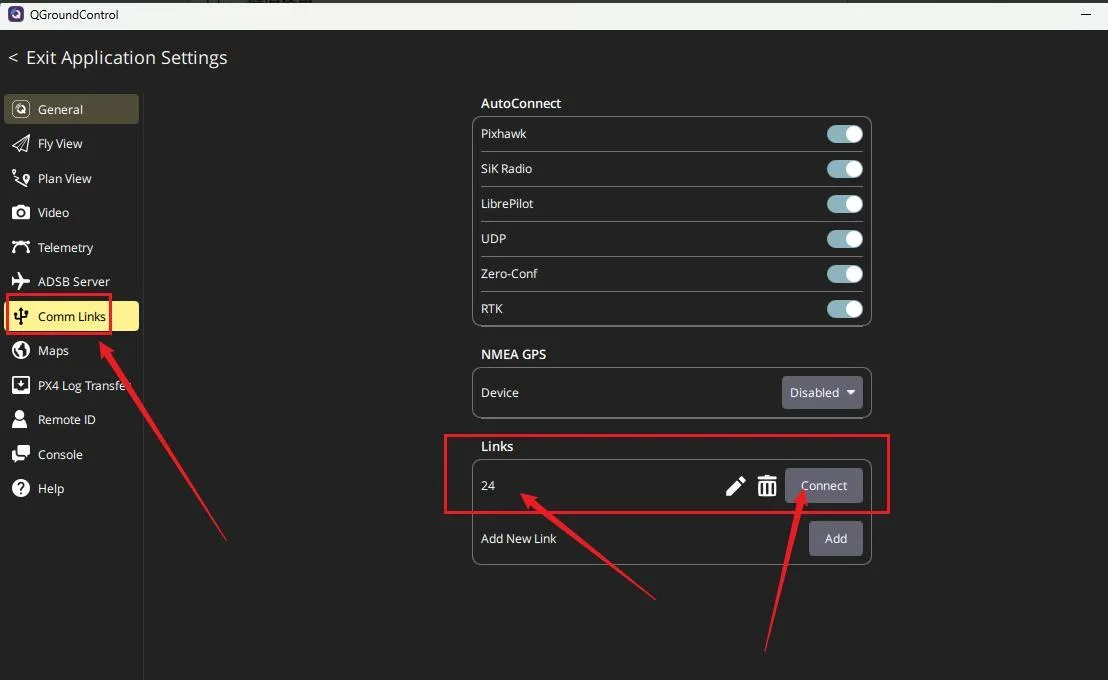
• Navigate to “Exit Application Settings” > “Comm Links”.
• Click “Add New Link”.
• You can customize the Bluetooth serial port name. Select the corresponding Bluetooth serial port under “Serial Port” (if multiple ports exist, try adding a few different ones). Set the “Baud Rate” to “115200”.
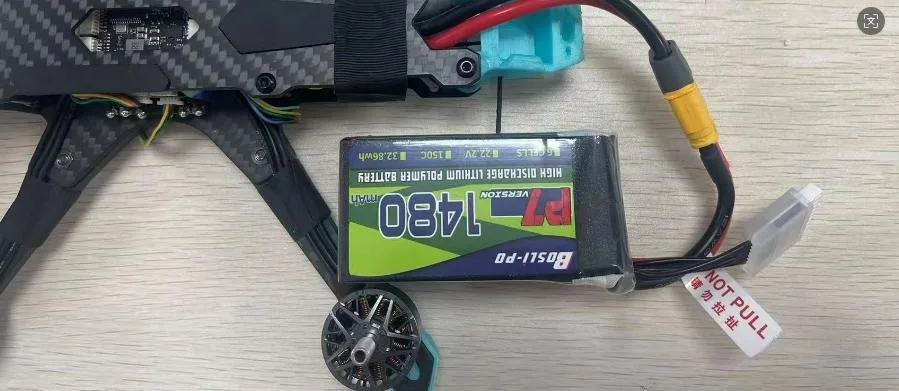
Power on the aircraft with a battery.
Disconnect the data cable between the computer and the flight controller at this point.
On the computer, open Bluetooth settings, select “Add a device”, choose “Show all devices”, and find “CORVON BLE”.
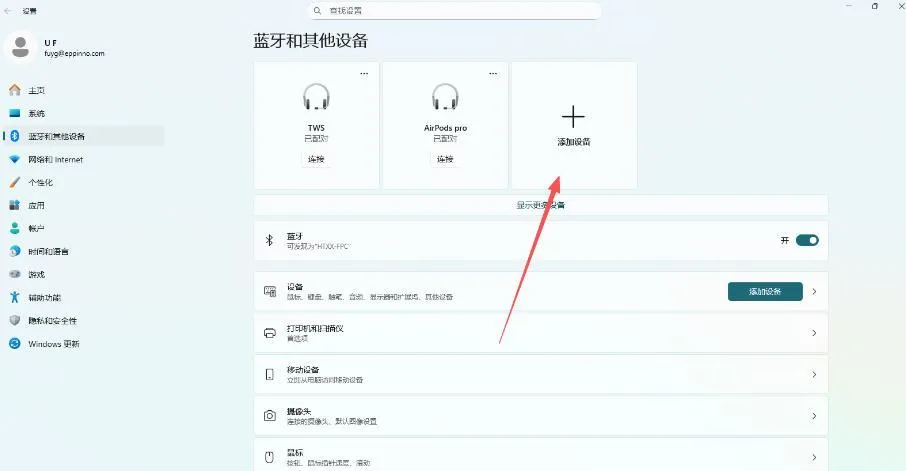
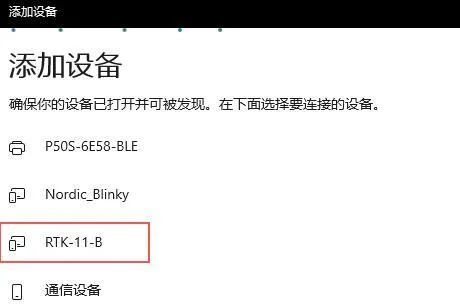
Open the PX4 (QGroundControl) ground station. Go to “Exit Application Settings” > “Comm Links”, click on the previously added serial link, and connect. The process is now complete.
INAV Ground Station
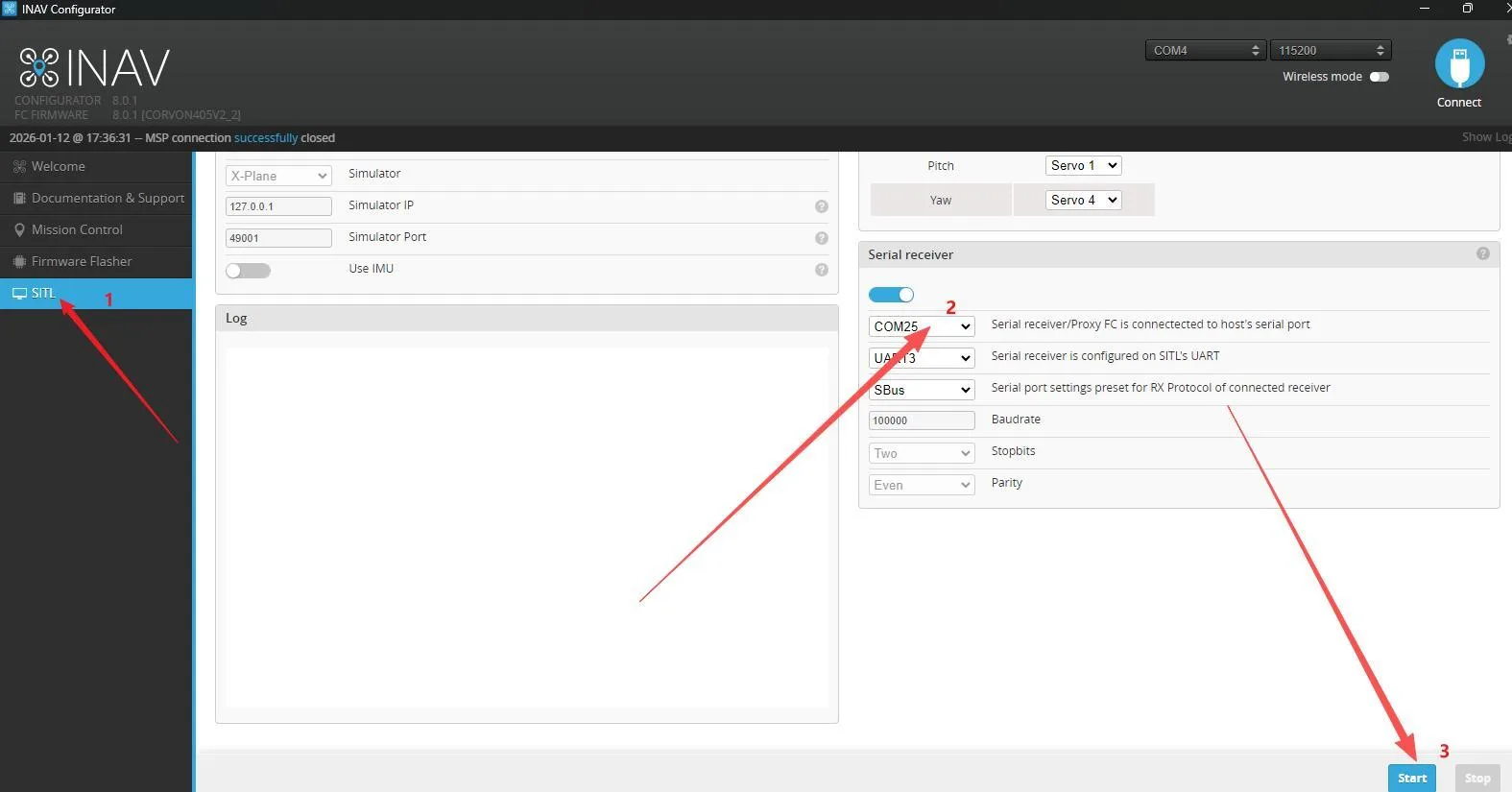
Open the INAV ground station and connect the computer to the flight controller using a Type A-to-C data cable (to modify the flight controller port for Bluetooth support).
Open the SITL serial port and select the corresponding Bluetooth serial port.
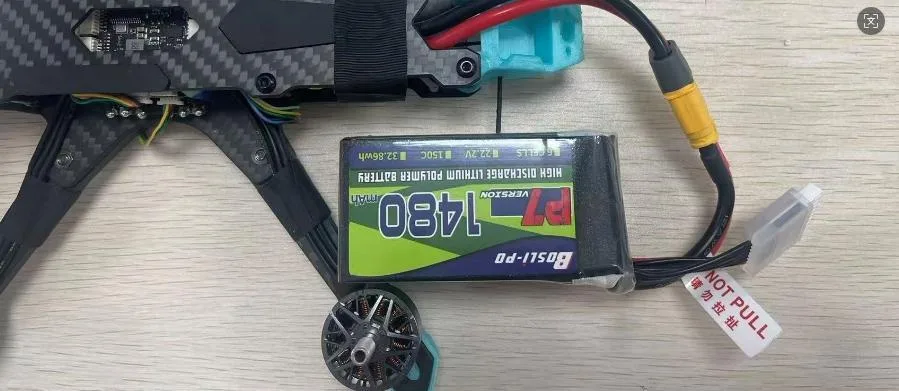
Power on the aircraft with a battery.
Disconnect the data cable between the computer and the flight controller at this point.
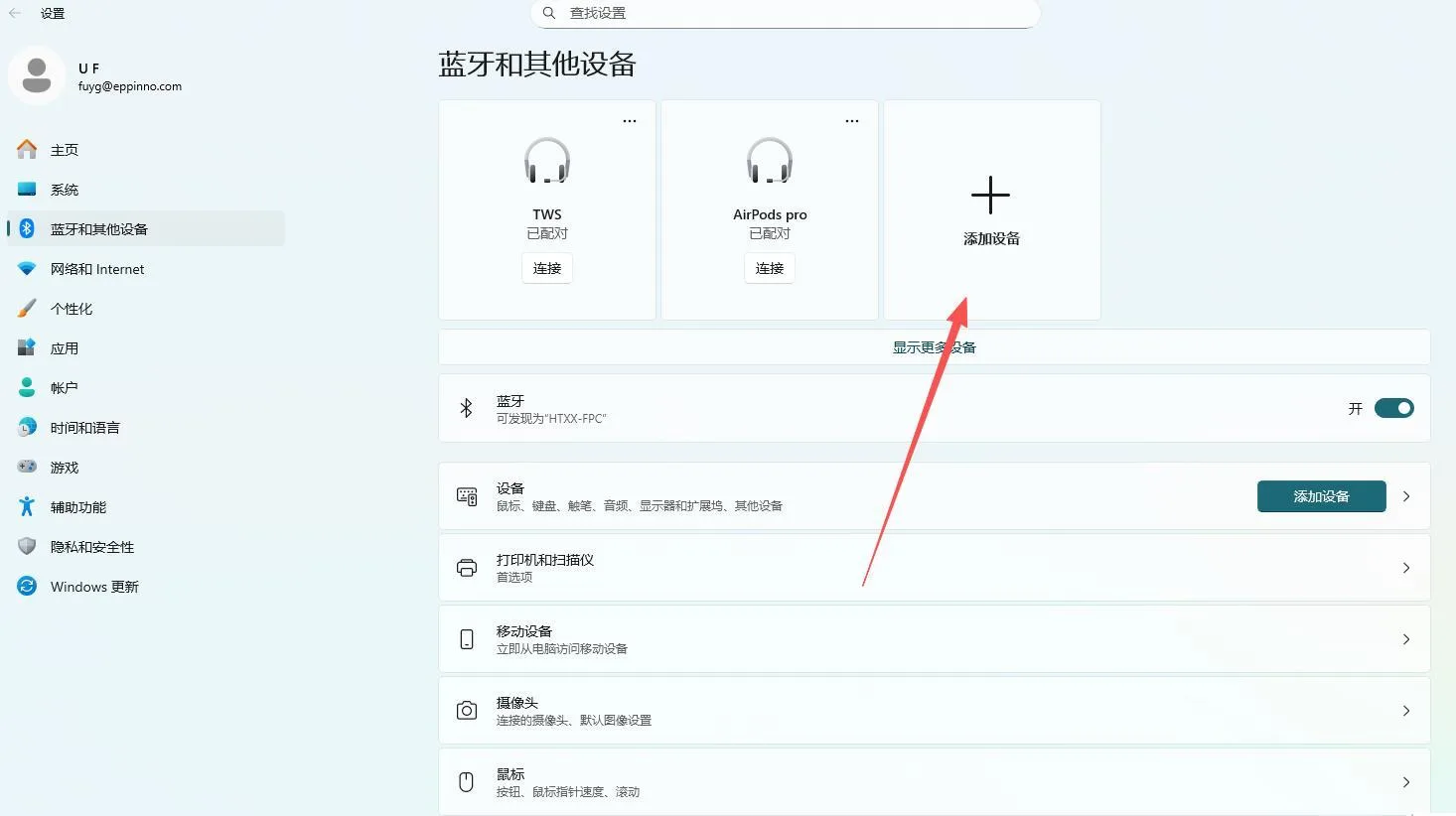
On the computer (Windows), open Bluetooth settings, select “Add a device” choose “Show all devices”, and find “CORVON BLE”.
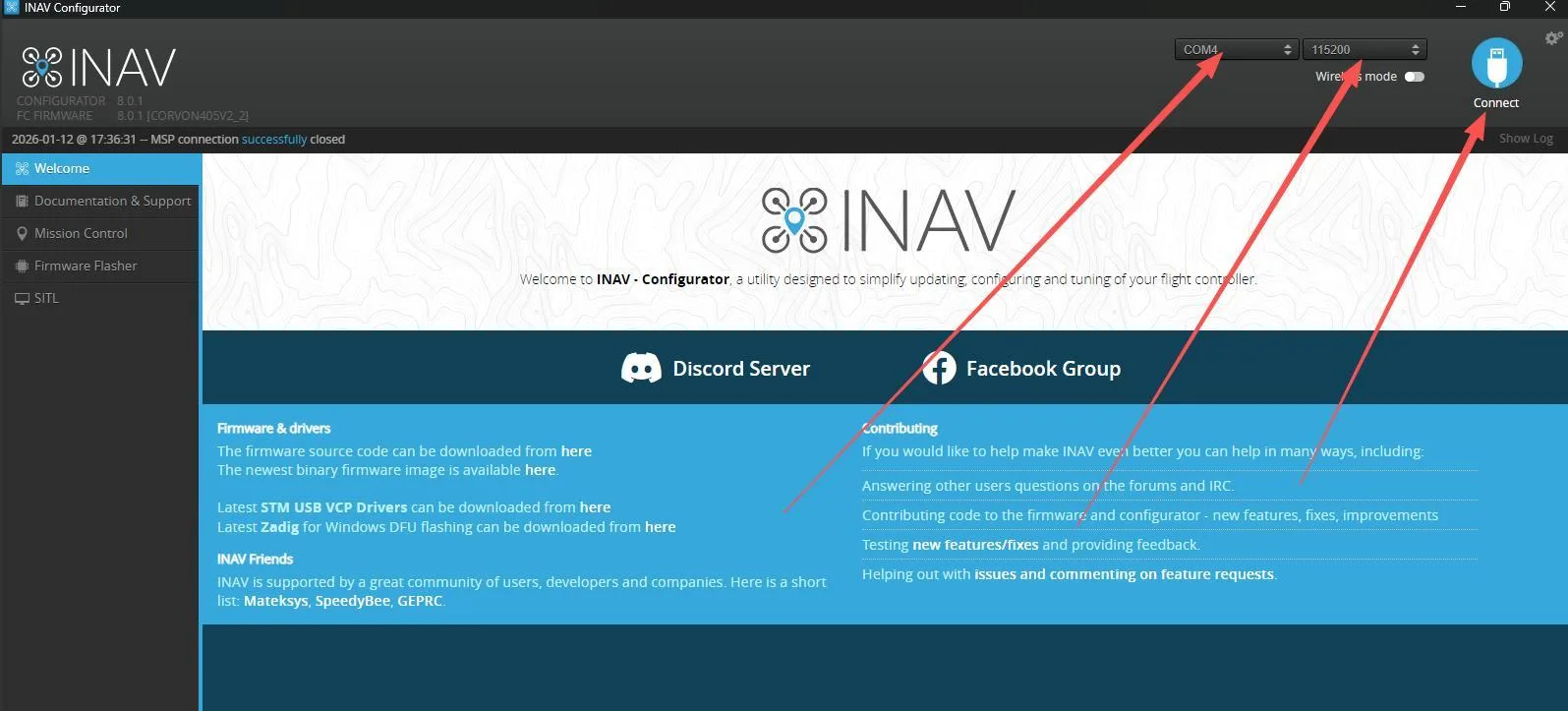
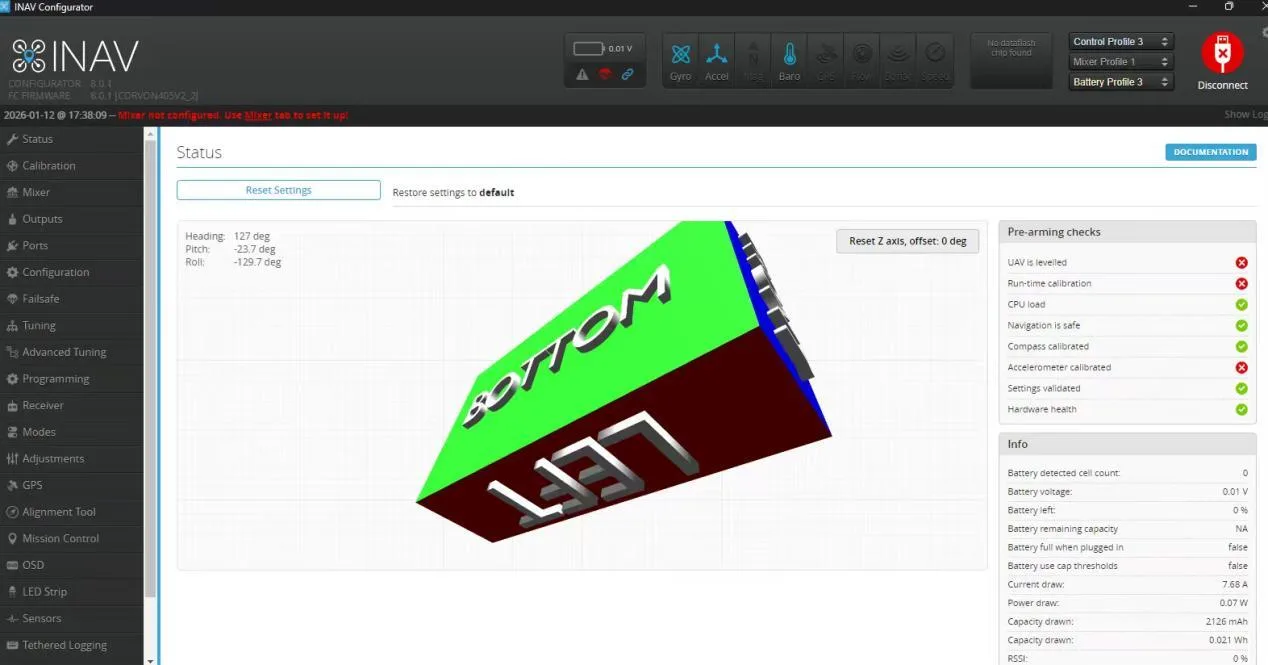
Open the INAV configurator, select the corresponding serial port, set the baud rate to 115200, click “Connect”, and the process is complete.
BF (Betaflight Configurator)
Open the BF (Betaflight Configurator) ground station and connect the computer to the flight controller using a Type A-to-C data cable (to modify the flight controller port for Bluetooth support).
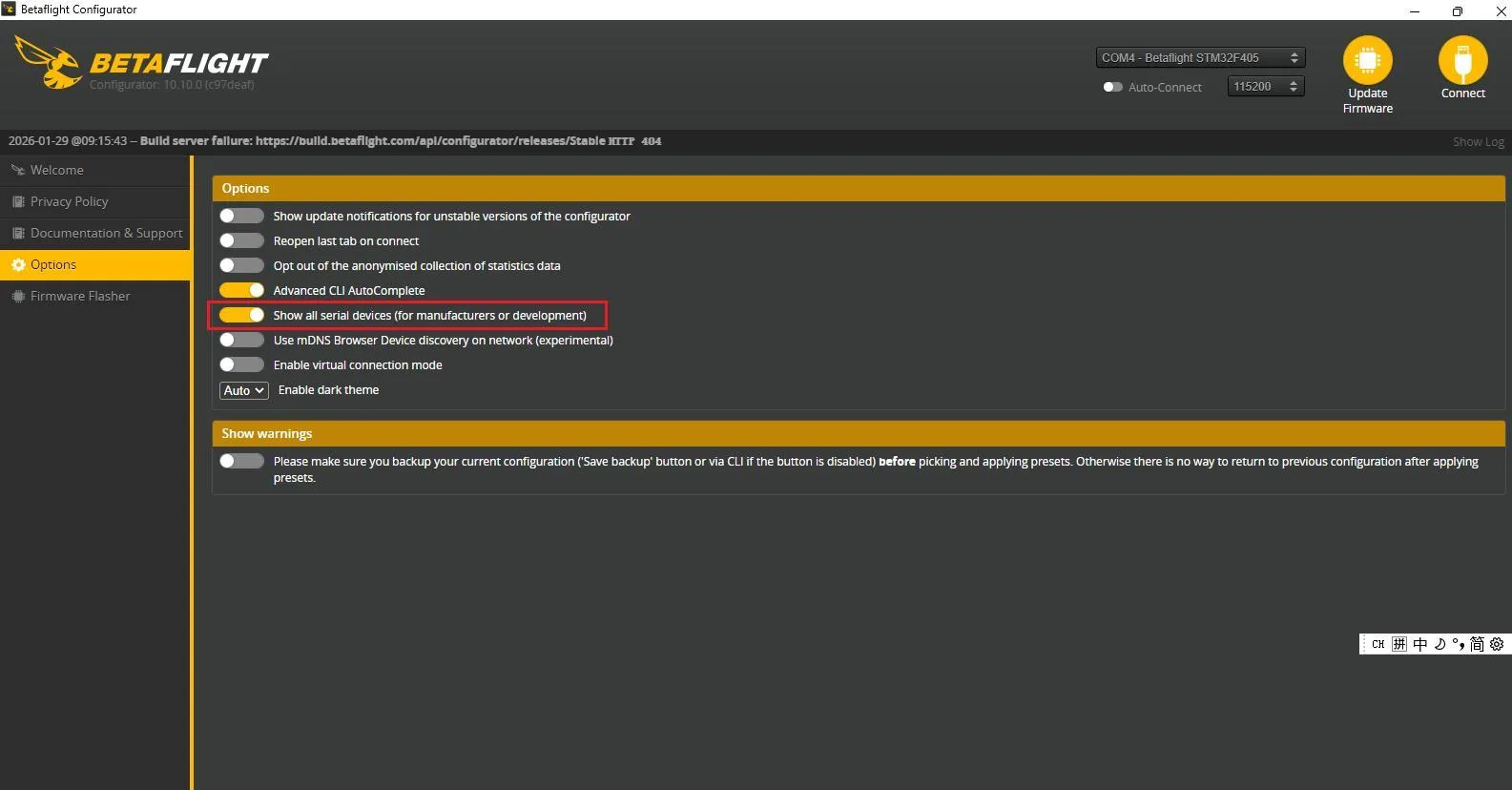
In Betaflight Configurator, ensure the option to "Show all serial devices" is enabled (if available).
Power on the aircraft with a battery.
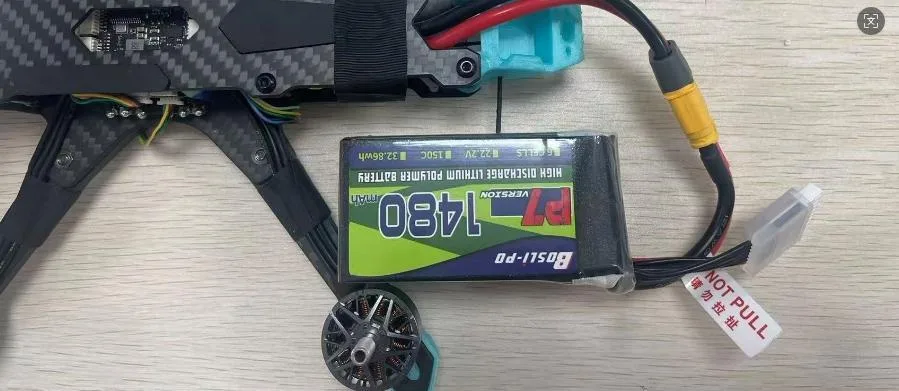
Disconnect the data cable between the computer and the flight controller at this point.
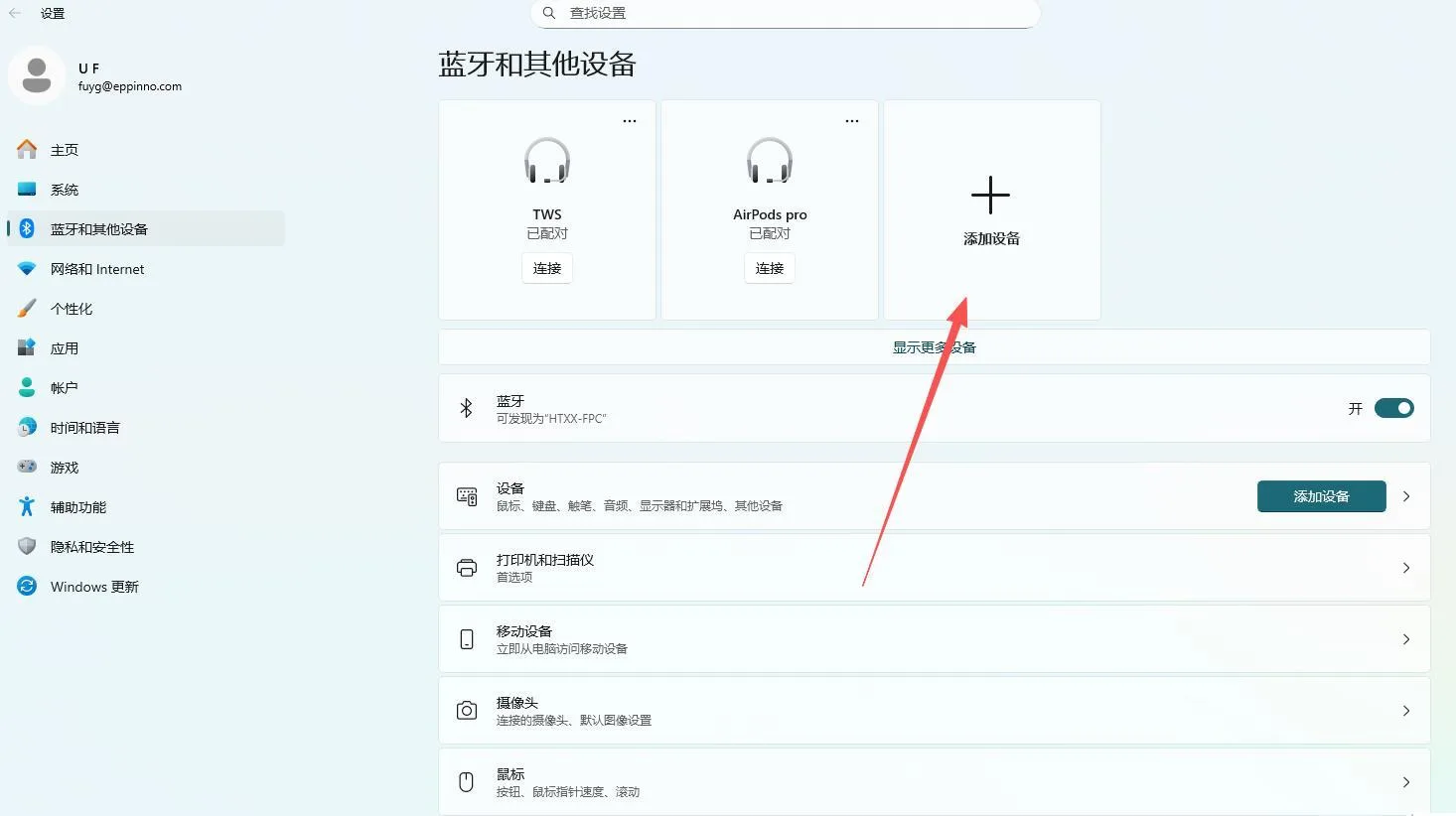
On the computer (Windows), open Bluetooth settings, select “Add a device” choose “Show all devices”, and find “CORVON BLE”.
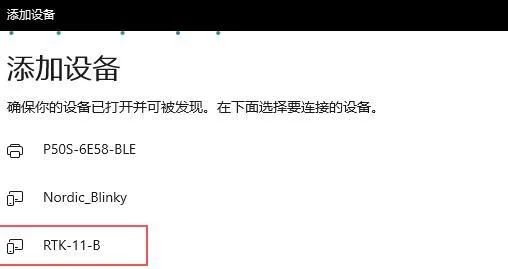
Open the BF (Betaflight Configurator) ground station, select the corresponding Bluetooth serial port, and connect. The process is now complete.